

Showing posts with label utility. Show all posts

Saturday, November 18, 2006

AppZapper

I install a lot of stuff. I am always looking for better tools and toys to use. Since I come from the Windows world I am used to having an uninstall process for most everything. Now, while that process was often painful, it was there.

When I moved to the Mac world I made a bad assumption. Since installing on a Mac is usually drag and drop an icon, I assumed that uninstalling was the same way. As I discovered recently when you delete an app from your Applications folder lots of things are left behind. All this leftover stuff won't necessarily have any affect on your system, but it does steal hard drive space away from you.

I tried a few uninstall solutions out there and basically they all worked, but I wasn't sold on any until I found AppZapper. AppZapper is easy to use, just like installing, to uninstall anything you just drop it's icon onto the AppZapper icon or window as shown below.
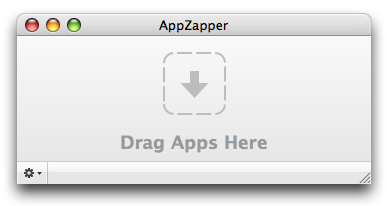
AppZapper opens up and tells you everything that is associated with the app, where it's located and lets you deselect portions of the list.
So far I have not deselected any items when I have used the program, but I am sure it will happen eventually. After my 5 free zaps were up I was so pleased with the experience that I bought the app for $12.95. It's a small price to pay for the ease of use and peace of mind that things are not gumming up my system.

http://www.appzapper.com/

Sunday, October 29, 2006

Quickies :-)

No, not that kind, get your mind out of the gutter :-) I a few pieces of software that I have used recently and they all work really well. But as one trick ponies, I am going to put them in one post as I have not been able to post on a regular schedule lately and I don't want to forget to tell you about them. So, with out further adieu ...

Spirited Away : Since I am always juggling lots of programs at one time, I fill my launcher bar up fast. Well, Spirited Away helps this. The program checks my minimized programs for use and if I haven't used them in a while it hides them making more room.... sweet :-)

Menu Shade : Menu Shade is pretty cool to get a clean desktop. It takes the bar at the top of the Mac screen and changes the color and sets a transparency level as well. The bar becomes full visible when you hover the pointer over it. This is good for taking screen shots or just for admiring your wallpaper in a more pristine environment :-)

Desktopple : Desktopple is a screenshoters best friend. This one trick pony hides everything on your desktop to take clean shots. This is great when you need takes shots for a work presentation but don't want them to see your Star Wars icons or funky wallpaper. This program will also hide everything before you hook up to a projector and show your prospects too much :-)

Dead.licious : If your like me you have a lot of bookmarks. In fact last time I checked I have over 1000 up at del.icio.us. Do I have the time to check them all for dead links? Heck no! Well, Dead.licious takes care of that for me now. Oh, and surprisingly on my last check, 1300 and all still good. Wow! lol

Tuesday, October 03, 2006

InsomniaX - The Missing Mac App


Did you know you can close the lid of your Mac laptop without it going to sleep? This is cool, well OK not so much cool and very 1999 (on Windows). This was one of the things I missed when I stopped using my old NEC laptop and started using my iBook. If it does exist in OS X, I have never figured out how to do it. This is a great tool, go get it! LINK


From the site.....

Version: 0.3

Description:
It always has been a missing feature: disabling the sleep mode on a Apple Laptop. Who does not want to use it as a big juke-box or go warwalking. The best looking server ever, especially at about one inch height. This small utility is what you will want, this small utility acts as a wrapper to the Insomnia kernel extension.

Monday, September 25, 2006

Quickie Review - Locker Widget 1.1

Icon Quickie Review - Bluecouch Software - Locker Widget 1.1

Locker widget has one purpose. When you double click it it locks your Mac. This may seem silly, but it really is useful for when you have to go grab that latte refill at Starbucks and leave you iBook on the table or when your in the library and have to go 20 feet away to get that next reference book. Simple, elegant, free and most import it's a universal binary so it will run on the older Power PC systems and on the new Intel versions of the Macs. Go grab it!

From the web page....

Locker is a Dashboard widget. It has a very simple and limited usage: When you double click it, it will lock your computer. You will end up at login window, just as if you had used the fast user switching menu item.

Tuesday, September 12, 2006

Spambox.us

Hello everyone! Today I have quickie review of Spambox.us which I just heard about the other day. Spambox.us is a website that allows you to setup a "fake" email address for a specified time from 30 minutes up to year. Once a mail is sent to the "fake" address it is forwarded to you real email address. This is great for places that you have to sign up for to access, after all BugMeNot will not work for everything :-)


Here is a real example from my own life. My wife and I had a disagreement about who the band playing in a TV commercial was. So I found this great site and sure enough they had the answer for us. Oh, yeah, and as expected..... she was right :-) BugMeNot did not work for the forums in which the answer was, so I had to register. If I had known about this site at the time, this is what I would have used.


Friday, September 08, 2006

SnapNDrag - Screen Capture

Since I have started to even consider doing a reviews blog I have seen the need for a good screen capture tool. I have been playing with the Mac print screen key combo, but it is awkward and does not give me any control on what to capture or when by using a timed shot. I came across SnapNDrag via Google search. It looked simple, flexable and fast... just what I needed. This software delivers just what it says. I dropped the file into my Apps folder was up and running in about 30 seconds. There is a setup feature, but it's really not needed. This program just works. Just click and drag as the below image shows. There is support for multiple file formats PNG, TIFF & JPEG are included.


SnapNDrag is designed to be simple and intuitive. There are four buttons on the left side of the window. The buttons correspond to these four modes of capture:
  • Selection - lets you select an area to capture
  • Window - lets you select a window to capture
  • Screen - capture the entire screen
  • Timed - capture the entire screen after a delay
The above picture and verbage is from their website. After using this for two weeks doing hundreds of sample screen caps, I give this package 5 out of 5, honestly there is no way to improve. If they add more into it the program would slow down or become more difficult to use. Truly a great program and I highly recommend that you go to Yellowmug and get a copy for yourself!